
Data Grid
The Data Grid is the primary view for browsing and editing table contents. It opens automatically when you double-click a table in the sidebar. Every table, view, or query result is displayed using a high-performance virtualized renderer — only the visible rows are rendered, so even large result sets feel instant.
Video unavailable
Opening a Table
Double-click any table or view in the sidebar. The data grid opens in a new tab, color-coded by connection. The tab title shows the table name and the connection name in the tab bar.
Browsing Data
Pagination
Data is fetched in pages. The default page size is 500 rows, configurable via resultPageSize in Configuration. Navigation controls at the bottom of the grid let you move forward and backward through pages.
Since v0.21.0 the pagination bar also has a rows-per-page selector that overrides the global default for the current tab only: presets from 50 to 5000 (the global value is marked as default), a custom value, and All, which turns pagination off for that tab and fetches every row. The override is saved with the tab and survives a restart; other tabs and new tabs keep the global default. Changing the page size recomputes the page number so the first visible row stays in view.
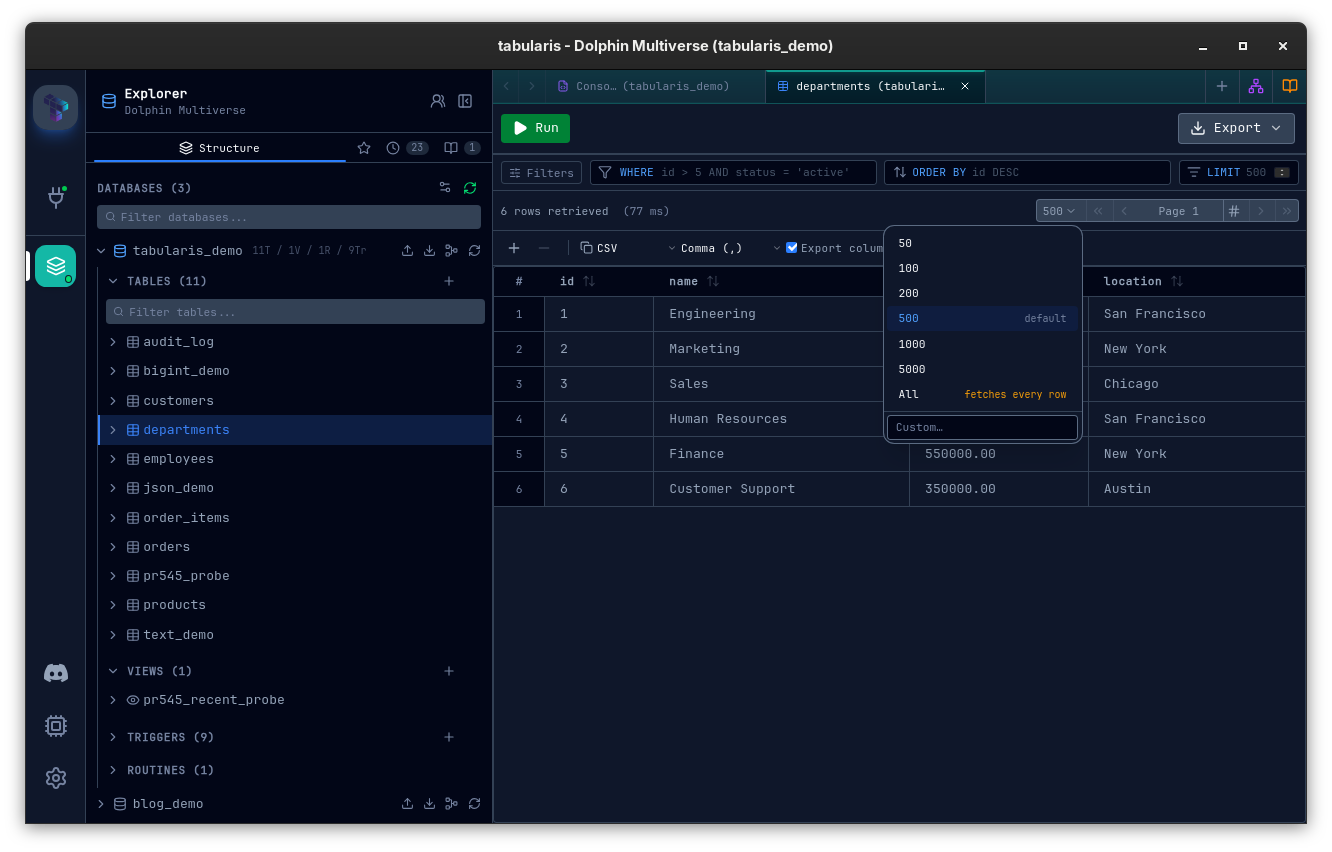
The total row count is shown alongside the pagination controls, fetched via a COUNT(*) query when you open the table.
Column Resizing
Drag a column header border left or right to resize columns. Double-click the border to auto-fit the column to its content width.
Sorting
Click a column header to sort by that column (ascending). Click again to sort descending. A third click removes the sort. Sorting is applied server-side — a new query is issued with an ORDER BY clause so the sort is consistent across all pages.
LIMIT / OFFSET preservation — if your query includes a
LIMITorOFFSETclause, clicking a column header to sort will preserve it. Only theORDER BYportion is replaced.
Filtering
A filter bar is available at the top of the grid. Type a condition to filter the results. The filter is applied as a WHERE clause, so it works across all pages and correctly reflects the total count.
Inline Editing
Tabularis supports inline cell editing for tables. Changes are tracked as pending edits and not immediately committed.
Editing a Cell
Double-click a cell to enter edit mode. Type the new value and press Enter to confirm or Escape to cancel. Edited cells are highlighted to distinguish them from unchanged values.
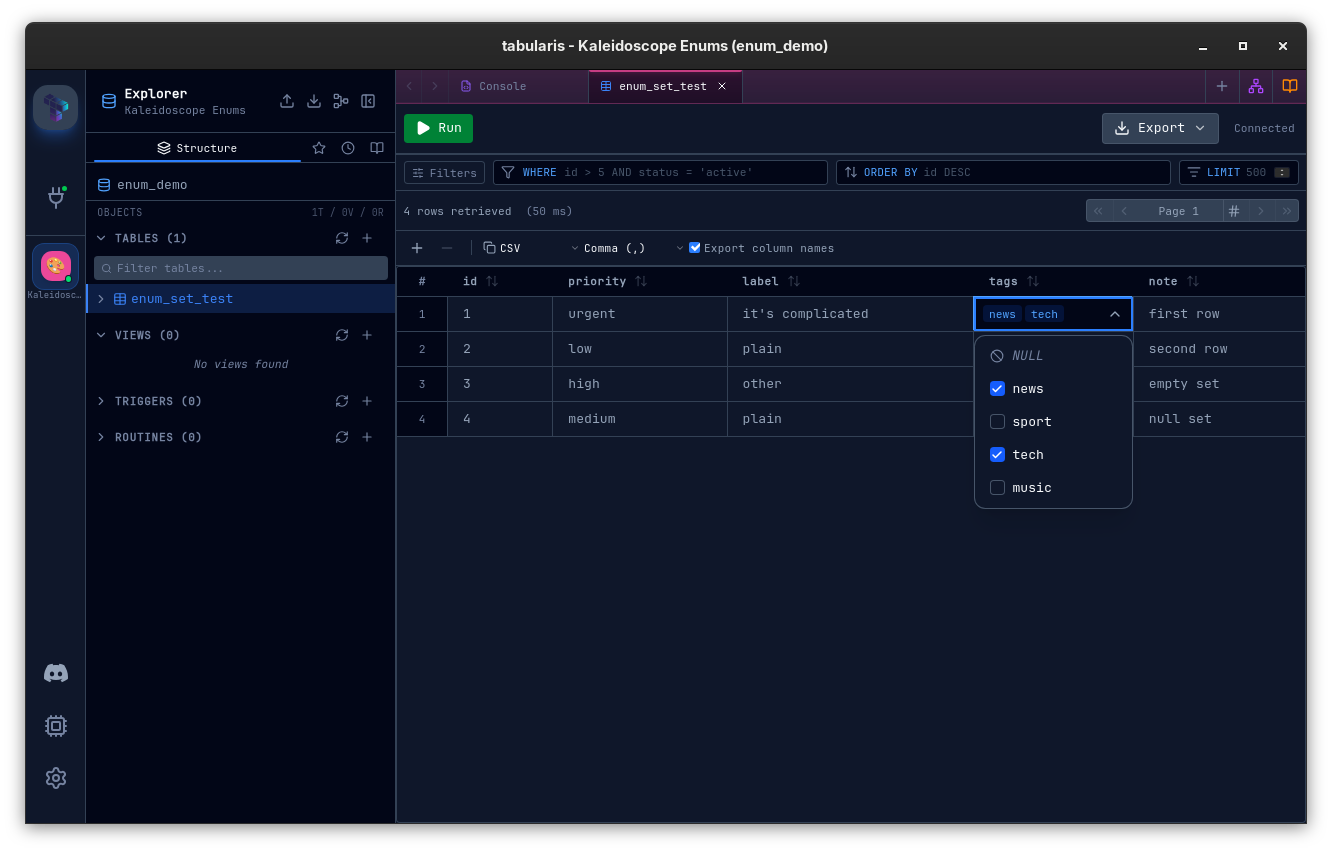
ENUM columns (MySQL and PostgreSQL) render a dropdown of the allowed values instead of a free-text input — both in the grid and in the row-editor sidebar. Nullable ENUM columns include a NULL option. The allowed values are introspected from the database (information_schema on MySQL, pg_enum on PostgreSQL), and MySQL SET columns get the same treatment with multi-value checkboxes.
Adding a Row
Click the + Add Row button at the bottom of the grid. A new empty row appears at the end. Fill in the values for each cell and commit when ready.
Deleting Rows
Select one or more rows by clicking the row header checkbox, then click Delete Selected — or press Delete / Backspace with the rows selected (works whenever no cell is being edited and the grid isn't read-only). A confirmation is shown before the DELETE statement is executed.
Committing Changes
Pending edits (cell modifications, new rows, deleted rows) are shown with a visual indicator. Click Apply Changes to generate and execute the corresponding INSERT, UPDATE, or DELETE statements. Click Discard to roll back all pending changes without touching the database.
A DDL preview showing the exact SQL that will be executed is available before you confirm.
Edits and deletes are matched on the table's full primary key. For a table with a composite primary key (e.g. PRIMARY KEY (profile_id, phone_type, key)), the generated WHERE clause includes every PK column — WHERE col1 = ? AND col2 = ? AND … — so a change targets exactly one row rather than every row that happens to share part of the key.
Tables Without a Primary Key
Since v0.19.0, tables with no primary key are editable too. Rows are identified by the values of all their comparable columns instead: binary, geometric, json and hstore columns are excluded (their grid representations wouldn't survive an equality comparison), and so are approximate numerics (FLOAT, DOUBLE, REAL). Excluded columns stay editable — they just don't take part in addressing the row.
Two conditions apply:
- The result set must expose every physical column of the table. A partial
SELECT a, b FROM ton a keyless table stays non-editable — it couldn't distinguish rows that differ only in the omitted columns — and double-clicking a cell explains why instead of doing nothing. - Rows that are entirely identical collapse to the same identity. Deleting one deletes all of its copies: MySQL/MariaDB remove one copy per statement (
LIMIT 1) and repeat until the count the grid showed is gone, PostgreSQL and SQLite sweep them in one statement — every driver ends up in the state the grid displayed.
Updates to the same keyless row run sequentially, threading already-applied values into each step's WHERE clause. If a row no longer matches its original values — the data changed underneath you — the operation raises a clear error instead of silently affecting zero rows.
Keyboard Navigation
Since v0.18.0 the focused cell moves from the keyboard, not only from a click:
Video unavailable
| Key | Action |
|---|---|
↑ ↓ ← → |
Move one cell, clamped at the edges. |
Home / End |
First / last column of the current row. |
PageUp / PageDown |
Move one viewport of rows. |
Enter / F2 |
Open the focused cell for editing — the same path as a double-click. |
Cmd/Ctrl + A |
Select all loaded rows. |
The first key press in a grid with no focused cell yet enters at the top-left cell. Keys are bound to the grid's scroll container rather than to the document, so in a notebook — which mounts one grid per SQL cell — only the grid you are working in responds. Keys are left alone for anything that handles them itself: text inputs, the foreign-key and BLOB buttons inside cells, and the sortable column headers. Closing an edit with Enter or Escape returns focus to the grid so navigation continues.
Cmd/Ctrl + A is ignored inside text inputs, while a cell editor is open, and in any grid you have not interacted with.
Copying Data
Tabularis supports row-level, column-level, cell-range and cell-level copy from the data grid. The modes are mutually exclusive rather than fighting each other: clicking a row checkbox clears the cell focus, clicking a cell clears the row selection, and starting a column or range selection clears the other two. So what Ctrl/Cmd + C copies is never ambiguous.
Cell-level selection
Click any cell to give it a focused outline; the row checkbox stays untouched. Press Ctrl/Cmd + C to copy just that cell value to the clipboard, formatted using the same null/length/type rules used for row copy. The cell context menu also exposes a Copy cell action.
Row-level selection and copy formats
Select one or more rows by clicking the row header checkbox (or shift-click / ctrl-click for ranges and multi-select), or select every loaded row with Cmd/Ctrl + A, the Select All / Deselect All entry in the row context menu, or a click on the # header cell. Then use Ctrl/Cmd + C to copy — no modal, no interruption.
Selecting and copying are separate actions: selecting rows never writes to the clipboard on its own. The row context menu offers the two copy scopes side by side so the difference is explicit:
| Action | Scope |
|---|---|
| Copy Selected (N) | The rows currently selected, from the loaded page. |
| Copy All (M) | Every row of the result. The query is re-run unpaginated with the tab's total-row limit stripped, preserving the on-screen sort order. When the total is unknown, the label omits the count and the toast reports the actual number of rows fetched. |
Every copy path shows a toast with the row count. When a copy covers only the loaded page of a larger result, the toast says "Copied N of M rows" — a partial copy is never silent.
The default format is CSV; you can change it in Settings → General → Default Copy Format to one of:
| Format | Output |
|---|---|
| CSV | Tab- or comma-separated values (delimiter follows csvDelimiter), spreadsheet-friendly. A toolbar toggle controls whether the column-header row is included (csvIncludeHeaders, on by default). |
| JSON | A JSON array of objects with column names as keys. |
| SQL INSERT | A sequence of INSERT INTO \table` (col1, col2, …) VALUES (…);statements, one per row. NULLs render asNULL, booleans as TRUE/FALSE`, numbers unquoted, strings single-quoted with single quotes doubled-up. |
The setting maps to the copyFormat key in config.json (see Configuration).
Column-level copy
Since v0.17.0 you can copy all values of a single column — from the cell context menu (applies to the clicked column, using the selected rows or all visible rows when nothing is selected) or from the column header context menu:
| Action | Output |
|---|---|
| Copy column values | Newline-separated, one value per line, null for NULL cells. |
| Copy column values (IN clause) | A ready-to-paste SQL list: numbers raw (1, 2, 3), strings quoted with '' escaping ('O''Brien'), NULL for nulls. |
Since v0.18.0 you can also select whole columns DBeaver-style: Cmd/Ctrl + click a column header toggles it, Shift + click range-selects headers, and a plain click still sorts. Ctrl/Cmd + C then copies the selected columns for the rows in scope.
Cell range selection
Shift + click a second cell to select the rectangle between it and the currently focused cell. The range is highlighted, and the context menu offers Copy Range (R×C) to copy exactly those cells. A plain click moves the anchor and clears the range.
Pasting Data
Since v0.20.0 the grid also supports spreadsheet-style paste with Cmd/Ctrl + V (or Paste in the cell context menu). Pasted values are staged as pending changes through the same flow as inline editing — they never go straight to the database, and you can review, apply, or roll them back before anything is written.
- Paste anchor — in priority order: the top-left of a cell range selection, the right-clicked cell, the top of a row selection, or the focused cell.
- Parsing — tab-separated cells win (the spreadsheet clipboard convention). Multi-line text without tabs is parsed as CSV with double-quote escaping, preferring your configured copy delimiter, so the grid's own copy formats round-trip. A single line without tabs is always one value —
hello, worldlands in one cell. - Header detection — a leading header row is dropped only when it matches the grid's column names positionally from the paste anchor, so the "export column names" option round-trips without swallowing external data that merely mentions a column name.
- Fill — a single copied value fills the whole selected range or row selection.
- Bounds — the pasted matrix clips at the grid edges (rows are not auto-created; add pending-insertion rows first). Alias and computed result columns are skipped under the same guard as inline editing, and existing rows must be identifiable — in a keyless grid only pending-insertion rows accept a paste.
- Pasting a cell's original value back clears its pending change, just like typing it would.
Known limitations: values containing the copy delimiter don't survive a copy→paste round-trip (the grid's CSV copy output doesn't quote them yet), Excel cells containing quoted newlines are split on the newline, and a copied NULL pastes as the literal string null rather than SQL NULL.
Row Editor Sidebar
Since v0.17.0 the row editor is a right sidebar — a layout sibling of the Explorer on the left, not an overlay covering your results. Toggle it with Cmd/Ctrl + Shift + B or open it from a row's context menu.
Video unavailable
- Follows your selection by default: select a different row and the editor updates to it.
- Pin it to a specific row with the pin button when you want to keep editing that row while browsing others.
- Resizable with a drag handle; the width is persisted across sessions.
Result Colors
By default every cell value renders in the same text color. Enable Result Colors under Settings → Appearance → General to tint cell values by their data type — numbers, text, dates/times, and booleans each get their own color, so you can read a row's shape at a glance.
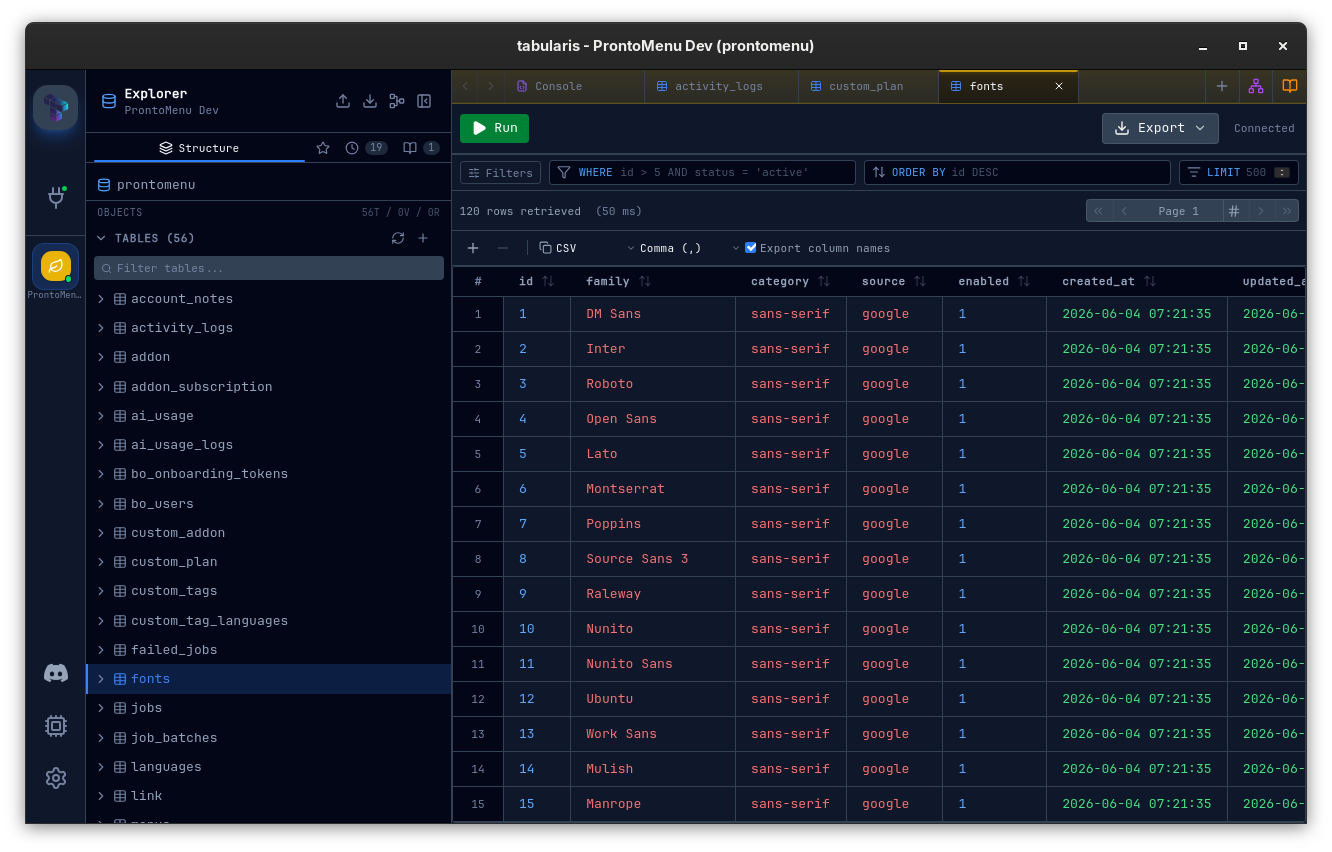
- The defaults follow the active theme's semantic palette (
--semantic-number,--semantic-string,--semantic-date,--semantic-boolean). - A per-type color picker with a live preview and a Reset to theme button lets you override any of them; overrides are saved in
config.jsonand applied on top of the theme. - Colorization is off by default — values render as before until you opt in.
- Colors apply only to plain data cells. Edited, inserted, and deleted rows, and
NULLvalues, keep their existing styling. Per-column colors are precomputed once, so there is no scroll-time cost.
Column Masking
Since v0.19.0, columns whose name matches a sensitive pattern — password, email, token, ssn, and friends — render as a •••••• placeholder instead of the real value.
- Per-cell reveal — masked cells show an eye button that reveals just that cell; a revealed cell gets an eye-off button to re-mask it. Column headers carry the same toggle for the whole column. Reveal state is grid-local and resets when the result data changes.
- Edit guard — masked cells can't be edited (double-click,
Enter,F2) until revealed, and the hover tooltip is suppressed so it can't leak the value. - Display-only — copy and export always carry the real values. Masking protects the screen, not the clipboard.
Masking is on by default and configured under Settings → Privacy: an on/off toggle, the column-name patterns (case-insensitive substring matches, one per line), and per-connection Always mask / Never mask overrides as table.column entries — never-mask wins over always-mask, which wins over the name patterns. A saved connection can also manage its own overrides from the Privacy tab of the connection modal (edit mode).
Exporting Results
Any query result — whether from a table browse or an SQL editor query — can be exported.
Export to CSV
Click the Export button in the toolbar and choose CSV. Tabularis streams the full result set (not just the current page) to a file. A progress indicator tracks the export; you can cancel it at any time.
Export to JSON
Choose JSON from the export menu. The full result set is written as a JSON array of objects, with column names as keys. Same streaming and cancellation support as CSV.
Exports are always performed on the complete result set — all rows that match the current filter, not just the visible page.
The exception is a multi-statement result (Run All / Execute Selection): since v0.21.0 the active result tab exports the rows already loaded rather than re-running the script on a fresh connection, so scripts that build temp tables can be saved. When only part of the result was loaded, the progress modal says how many of the total rows were exported; page through the result or raise the tab's rows-per-page (or pick All) before exporting if you need more.
JSON & Long Text Cells
json / jsonb columns and long text columns (TEXT, LONGTEXT, VARCHAR(MAX) and any string value longer than 80 characters or containing a newline) get a richer in-grid editor than the default single-line input.
Video unavailable
Chevron expand
A chevron icon appears next to the cell value. Click it to open an inline editor pane below the row:
- For JSON / JSONB cells: Monaco runs in JSON mode with syntax highlighting and bracket matching.
- For long text cells: Monaco runs in
plaintextmode.
The expansion editor supports a Diff toggle (off by default) that compares the original cell value against the current pending edit. A second Side-by-side toggle flips the diff from unified to a two-pane view. Both toggles are persisted only within the open expansion — closing it discards the toggle state.
Standalone viewer window (JSON / JSONB only)
JSON cells additionally show a braces icon. Clicking it opens the cell in a standalone Tauri window dedicated to the value, with the same JSON editor and Diff / Side-by-side toggles plus a Save button. Multiple cells can have their viewers open at the same time — each window keeps its own session and remembers its bounds. Saving flows back to the grid as a pending change; close the window without saving to discard the edit.
Double-clicking a JSON cell opens the viewer directly in edit mode (skipping the chevron).
There is no separate viewer window for plain text cells — text values aren't compared across windows as often as JSON, and the inline chevron is the entry point that mattered.
"Detect JSON in text columns" (per-connection)
Some applications store JSON inside plain TEXT columns. To route those values through the JSON cell renderer, open the connection edit modal and enable Detect JSON in text columns. The flag is per-connection — toggle it on for your audit-log database and off for the one where TEXT means "free-form prose".
The same toggle also enables native array detection for text[] / int[] (PostgreSQL) and Firestore arrays.
Video unavailable
Round-trip through pending changes
Edits made in the inline expansion editor or the viewer window are queued as pending row changes rather than committed immediately. You can review the unified diff, decide you don't like it, close the editor, and hit Submit on the row when you do. PostgreSQL binds json / jsonb values natively (no string round-trip), so structured objects and arrays go through as typed parameters.
The same diff toggles are available in the row-editor sidebar for long fields, and that pane is drag-resizable so a long markdown article can occupy the height it deserves.
BLOB / Binary Columns
Large binary columns (BLOB, bytea, etc.) are truncated in the grid to avoid loading multi-megabyte values into memory. The maximum bytes loaded per cell is controlled by maxBlobSize in config.json (default: 1 MB). Values exceeding this limit are shown as a truncated hex preview with the full size in bytes.
Hex preview and editing
Since v0.20.0, small generic binary values — fixed-width identifiers like BINARY(16), short bytea payloads — render in the grid as a compact 0x… hexadecimal string instead of opaque transport metadata. Up to 64 bytes are shown; longer values get an ellipsis. Recognized file MIME types keep showing type and size metadata.
In the row-editor sidebar, any complete BLOB up to 10 KiB opens in a dedicated hex editor: bytes displayed as uppercase space-separated pairs, whitespace and an optional 0x prefix accepted on input, odd-length or non-hex input rejected, and invalid edits reverted on blur. Valid edits commit on blur or Cmd/Ctrl + Enter and preserve the value's original MIME type. BLOBs above 10 KiB, truncated values, and file references keep the existing download/file editor.
Foreign Key Navigation
When the active result is a table with foreign keys, FK cells get a click-to-navigate affordance:
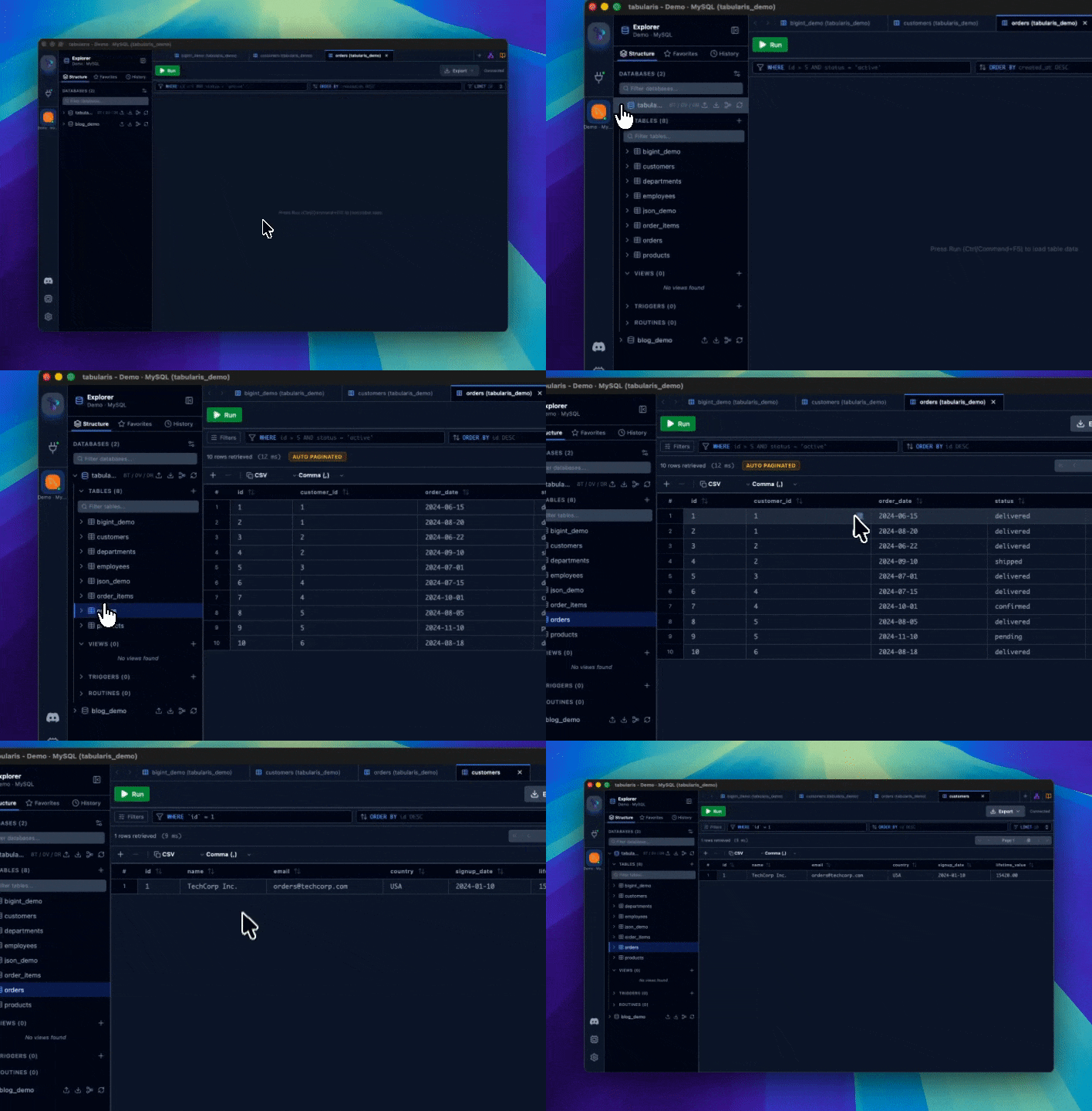
- Hover an FK cell → a small ↗ icon appears on the right of the cell. Clicking it opens (or reuses) a tab against the referenced table with
WHERE "ref_col" = valuepre-applied and runs the query. - Right-click an FK cell → the context menu's first entry is Open referenced row in
<table>.
The icon and menu entry only appear when the cell value is non-null, the row is not a pending insertion, and the row is not pending deletion. Identifier quoting follows the driver (backticks for MySQL/MariaDB, double-quotes elsewhere); numeric, bigint, boolean, and string values are formatted with the same rules used by the SQL INSERT copy format.
If the referenced table is already open as a tab, that tab is reused — the WHERE filter is overwritten and the query re-runs.
V1 limitations: only single-column foreign keys are surfaced; composite constraints and cross-schema navigation are not yet supported.
Related Records Panel
When you want to check what a foreign key points at without losing the row you're already on, click the FK value (or pick Show related record from the cell context menu) and a Related Records Panel slides up from the bottom of the data grid. The parent table stays visible and interactive above it.
- The panel renders a mini result grid of
SELECT * FROM <ref_table> WHERE <ref_col> = <value> LIMIT 100, using the same identifier-quoting rules as FK navigation. - Clicking a different FK in the parent grid swaps the panel content in place — no close-then-reopen.
- The panel is drag-resizable from the grip in its header, so a wide referenced row can claim the height it needs.
- An Open in tab button hands off to the navigation path above when you decide you do want to leave for the referenced table after all.
Column Header Context Menu
Right-click any column header to open the header context menu. Available actions:
| Action | Description |
|---|---|
| Copy column name | Copies the column name as plain text to the clipboard. Useful when building queries or referencing column names in other tools. |
| Copy column values | Copies the column's values, newline-separated (see Column-level copy). |
| Copy column values (IN clause) | Copies the column's values as a ready-to-paste SQL IN list. |
More actions may appear depending on context (e.g., sort direction, column visibility toggles).
Null vs. Empty String
The grid displays NULL values with a distinct grey NULL badge to differentiate them from empty strings. When editing, leave a cell blank to write an empty string; use the dedicated Set NULL option in the cell context menu to write a true NULL.
Keyboard Shortcuts
| Action | Shortcut |
|---|---|
| Edit selected cell | Enter / F2 |
| Confirm edit | Enter |
| Cancel edit | Escape |
| Copy selection (row or cell, depending on focus) | Ctrl/Cmd + C |
| Paste at the selection (staged as pending changes) | Ctrl/Cmd + V |
| Move between cells | Arrow keys |
| Next page | Ctrl/Cmd + Right |
| Previous page | Ctrl/Cmd + Left |
| Mark selected rows for deletion | Delete / Backspace |